Ways to share
There are three ways to share with your client. You pick one on the Start a session page, and you can switch between them during a session.
| Option | Best for | Your client can |
|---|---|---|
| Share a file | Proposals, price lists, contracts, presentations | Watch and point |
| Share your screen | Anything on your computer: apps, spreadsheets, any website | Watch |
| Browse together | Web pages where your client needs to click, choose or type | Watch, or take control if you allow it |
Share your screen
Show anything on your computer: a website, a spreadsheet or an app. Your client watches while you scroll, click and type.
- Click Share your screen.
- Your browser asks what you'd like to share. Pick one of the options below, then click Share.
- Send your client your link.
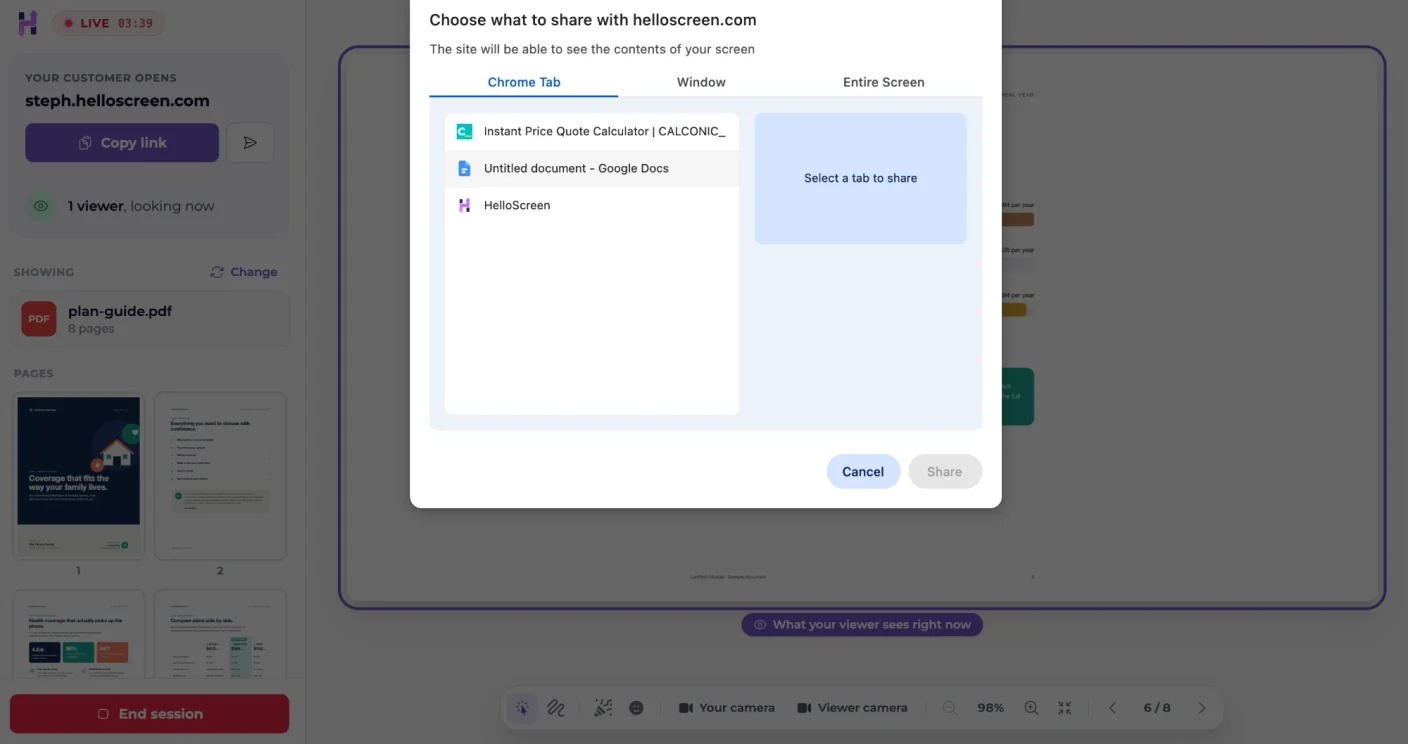
- Chrome Tab shares a single browser tab. This is the best choice for websites, since your client won't see your other tabs.
- Window shares one app window, like a spreadsheet or slide deck.
- Entire Screen shares everything on your screen.
Share a tab, not your whole screen
Your browser shows a bar at the top of the shared tab saying what's being shared, with its own Stop sharing button.
Browse together
Open a web page with your client so you're both on it together. Unlike screen sharing, you can hand your client control, so they can click, type and scroll themselves. It's ideal for filling in a form together, letting them choose options on a pricing page, or showing someone how to use a website.
Browse together needs the free HelloScreen browser extension for Chrome, Edge or Firefox.
Install the extension
- Go to Start a session and click Add the extension, or get it from the Chrome Web Store or Firefox Add-ons.
- Click Add to Chrome or Add to Firefox, and confirm.
- Click the HelloScreen icon in your browser's toolbar and sign in with your HelloScreen account.
Once it's installed, the Browse together card on the Start a session page says Extension installed.
Start browsing together
- Open the tab you want to browse together.
- Click the HelloScreen icon in your browser's toolbar.
- Choose Share this tab.
- Click Copy link and send it to your client. It's the same link you always use.
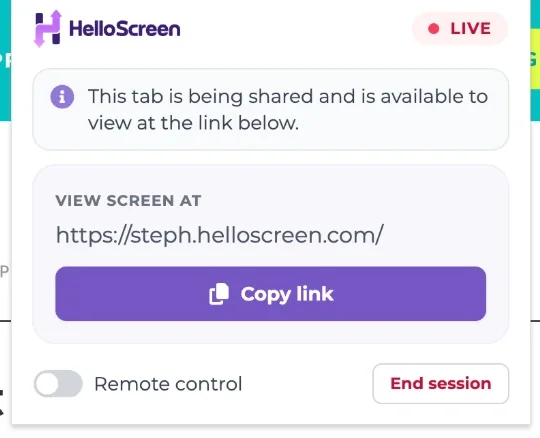
While you're sharing, a small HelloScreen bar at the bottom of the page shows how many viewers there are, your pointer and drawing tools, and End session.
To let your client click and type on the page, turn on Remote control. See Remote control.
Not sure where to start? Click Show me how on the Browse together card.