During a session
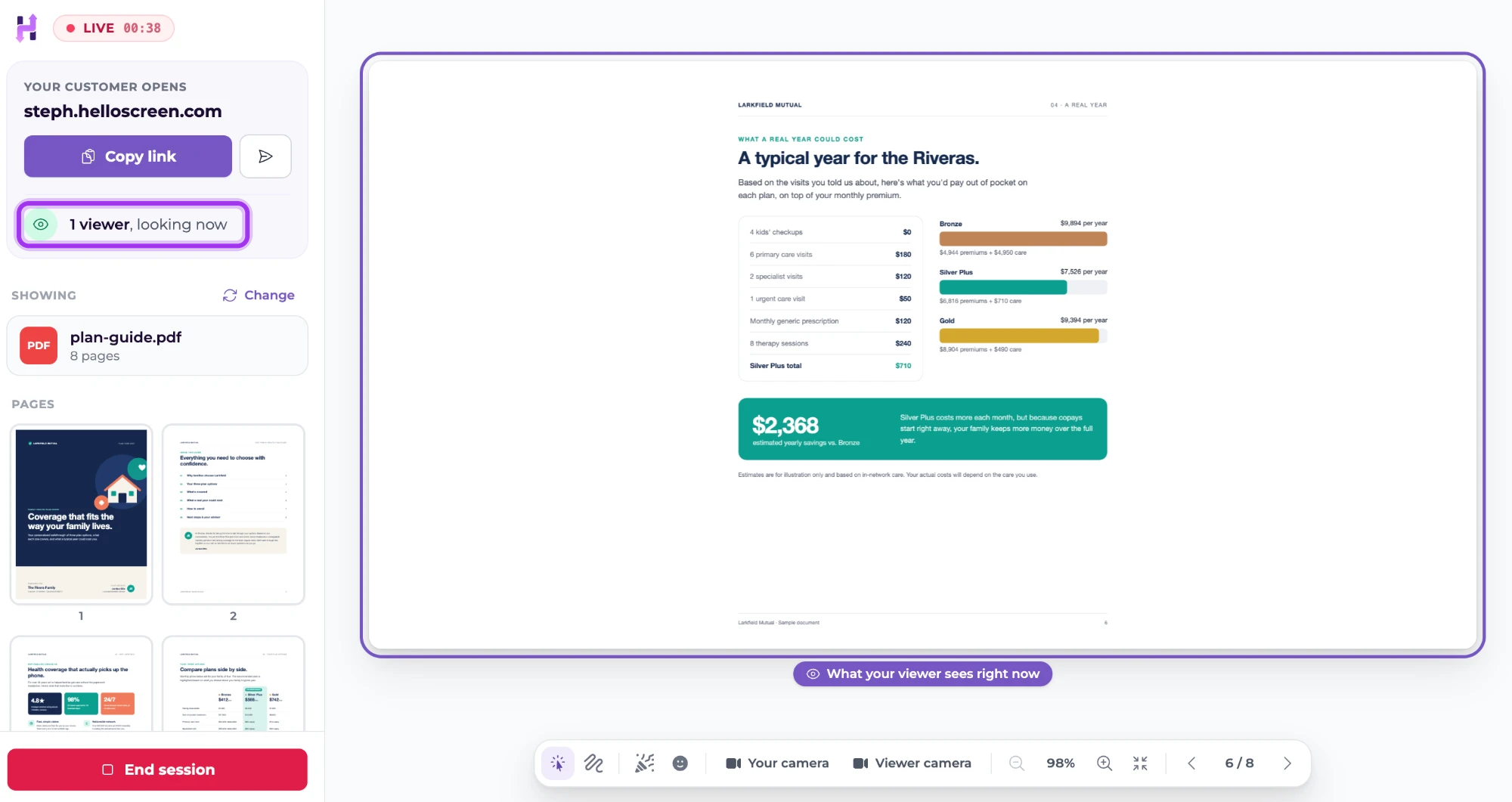
Once your client opens your link, the panel at the top left changes to 1 viewer, looking now and your presenting tools appear at the bottom of the page.
What you're sharing
A purple outline marked What your viewer sees right now goes around the part of your screen you're sharing. At the top left, LIVE shows how long the session has been running. See Viewer status.
How it looks for your client
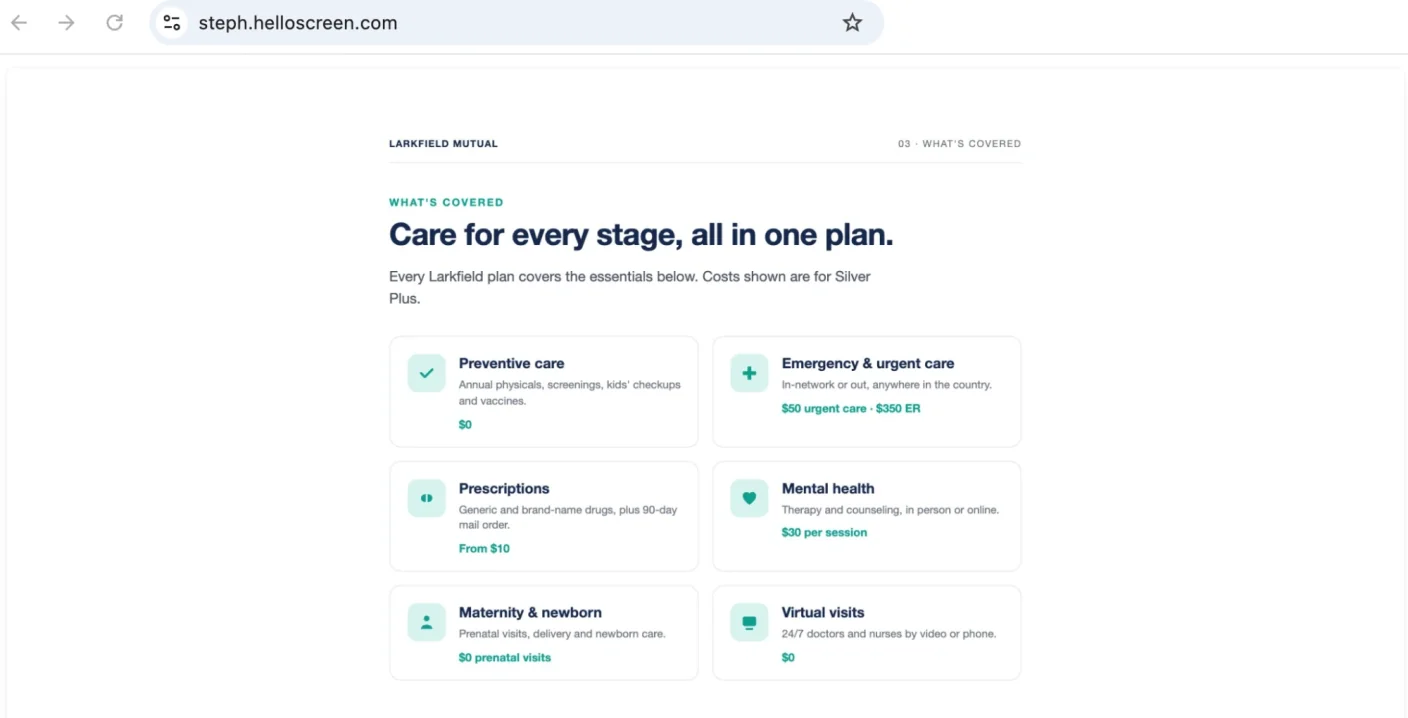
Your client sees what you're sharing in their own browser, at your link. There's nothing for them to click or set up. They just follow along while you talk.
The toolbar
Your presenting tools sit along the bottom of the page:

| # | Button | What it does | Learn more |
|---|---|---|---|
| 1 | Pointer | Show your client where you're pointing. | Annotation tools |
| 2 | Draw | Circle, underline or highlight parts of the document. | Annotation tools |
| 3 | Confetti | Send a burst of confetti to your client's screen. | Annotation tools |
| 4 | Emoji confetti | Send a burst of emoji to your client's screen. | Annotation tools |
| 5 | Your camera | Show your face in a small window on your client's screen. | Video |
| 6 | Viewer camera | Ask your client to turn on their camera. It only turns on if they accept. | Video |
| 7 | Zoom out / Zoom in | Adjust how big the document is, from showing the whole page to filling it. | Zoom and pages |
| 8 | Fill the screen | Switch between filling the screen and fitting the whole page. | Zoom and pages |
| 9 | Page arrows | Go to the previous or next page. | Zoom and pages |
Ending the session
Click End session at the bottom left. You'll be asked how the quality of the session was. If your team has session ratings turned on, your client is asked to rate you too. See After the session.