Session Basics
HelloScreen offers a set of features to help guide your client through a session. Note that some features may not appear depending on what your team owner has enabled.
The Toolbar

Picture in Picture
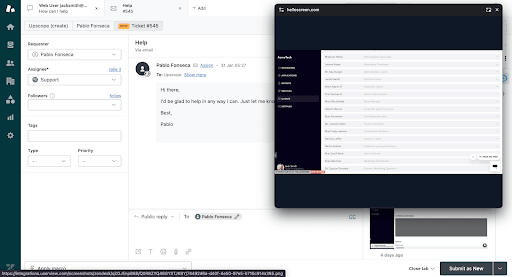
Take HelloScreen with you wherever you go on your browser. This is particularly helpful for live chat interactions.
Cursor
Use your cursor as you would on your own device. Navigate, scroll, click, and type to resolve issues faster.
Pen Tool
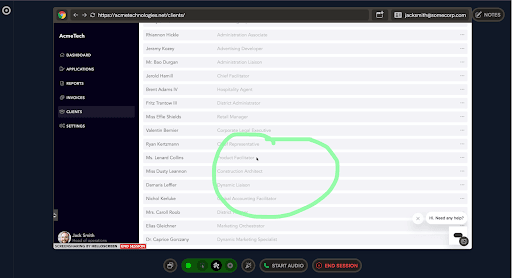
Highlight parts of the page using the pen tool. This is especially useful for a more hands-off, educational approach.
Spotlight
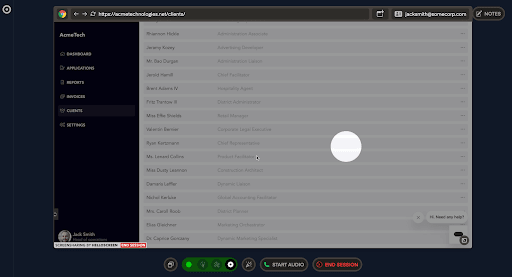
Draw focus to any part of the page with the spotlight tool.
Audio Calling
Start an audio call over the browser by clicking on the green phone icon at the bottom of the page. This is a browser-to-browser call, so the client will need a microphone and speaker.
Audio Call Issues
Notes
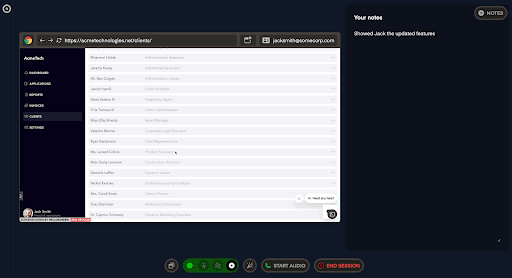
Take notes during the call. If you have an Intercom integration, these notes will be pushed to the ticket.
Confetti
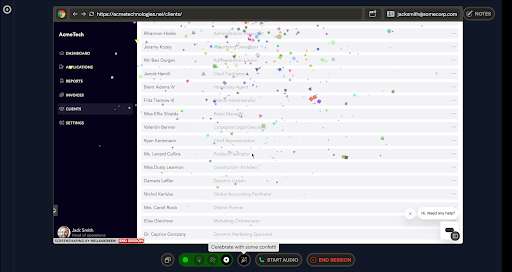
Celebrate with customers with a bit of confetti.
Ending the Session
The session ends when:
- You or the client click on
End Sessionin the bottom left corner of the screen. - The client closes the tab and any other tabs that have your site open.
- There are 10 minutes of inactivity (unless there is an active audio call).